Dumps
A dump node in XECUTE represents a destination for waste material removed during mining. Dumps are typically used to store overburden, low-grade ore, or other non-saleable material that cannot be processed further. They play a critical role in mine scheduling because:
-
They provide a valid endpoint for waste flows in the material flow diagram.
-
They can be configured with capacity limits, haulage details, and solids for realistic dump planning.
Key characteristics of dump nodes:
-
They are virtual locations in the material flow diagram but can be linked to physical locations via named haulage points or imported solids.
-
They support capacity management, inventory reconciliation, and haulage calculations.
-
When dump solids are imported, the software can visualise filling order and calculate travel times to individual dump blocks for more accurate scheduling.
Properties
|
General |
|
|
Name |
The name of the dump as it appears in XECUTE. Dump names don’t accept the following special characters: " < > | : * ? \ / ' or control characters (\t, \n…). However, @ and – are usable. |
|
Accumulation Field |
Determines how the dump’s capacity is measured and tracked in XECUTE. By default, the accumulation field is set to Mass, which means the dump capacity and inventory are measured in tonnes (or the site’s mass unit). When dump solids are not imported, you can change the accumulation field to any principal field that supports Sum aggregation. Examples:
If dump solids are imported, the accumulation field automatically switches to Volume_Swollen. This represents the swollen volume of the dump solids, accounting for swell factors applied during material movement. In this case, the capacity becomes read-only because it is derived from the imported solids geometry. |
|
Capacity |
Defines the maximum amount of material the dump can hold. It acts as a hard limit for scheduling and ensures the optimiser does not route more waste than the dump can physically accommodate.
|
|
Inventory |
Tracks the amount and qualities of material currently stored in the dump. It is essential for reconciliation and reporting because it provides accurate opening balances for scheduling and ensures the optimiser starts with realistic data. This is visible only when dump solids are not imported. If solids are imported, inventory is derived from the solids geometry and does not require manual entry. With this property, you can create reconciliation points to record the dump’s material properties at specific times. Default reconciliation values are set to zero if no inventory is defined. For information about defining inventory, refer to Capacities and inventories. |
|
Material |
Sets the Materials flowing into the dump. |
|
Stack Rate |
|
|
Determines how quickly material can be dumped, which directly affects scheduling feasibility and operational realism. Setting this correctly ensures the optimiser respects site constraints and avoids unrealistic stacking speeds. |
|
|
Type |
Defines whether stacking is rate-limited:
|
|
Maximum |
The expression that defines the upper limit for stacking or reclaiming material per hour. This value is only used when the rate type is set to Limited. The expression can be a fixed number (e.g. 5000) or a dynamic formula that references calendar fields such as Period Duration, Period Start, or Period Finish. You can also use custom fields imported via Data Feed In, allowing the rate to vary based on external operational data (e.g. crusher throughput, loader availability, or planned downtime). For example: PeriodDuration * 2000: sets the rate based on the length of the period.
Expressions are evaluated per period and shown in the override grid. You can override individual period values manually if needed. |
|
Override Per Period |
Allows you to manually override the stacking rate for individual periods. This is useful when operational constraints vary over time (for example, due to equipment availability, planned maintenance, or production targets). When overrides are enabled, a grid displays the calculated rate for each period based on the Maximum expression. You can edit any value directly in the grid to reflect site-specific conditions. To
apply overrides
If No is selected, the optimiser uses the calculated values from the Maximum expression without modification. |
|
Haulage |
|
|
Controls how travel time is calculated when sending material to the dump. These settings are critical for accurate cycle times and cost estimation. |
|
|
Dump Time Penalty |
Adds extra time (in minutes) to the haulage cycle when dumping material at this location. This penalty is applied on top of the default dump time configured in Haulage. |
|
Domain Name (Named Location) |
Links the dump to a named location in the haulage model for accurate travel time calculations.
|
|
Solids |
|
|
Solids properties enable advanced dump planning by importing 3D solids that represent the physical dump structure. This allows visualisation of filling order and more accurate haulage routing. |
|
|
Spatial Domain |
Assigns the dump to a spatial domain for solids mapping and haulage alignment. By default, dumps use the system Default Domain. |
|
Solids Colour |
Sets the colour for imported dump solids in the 3D view. Use the ellipsis for transparency and extended colour options to improve visual clarity. |
|
Add Solids |
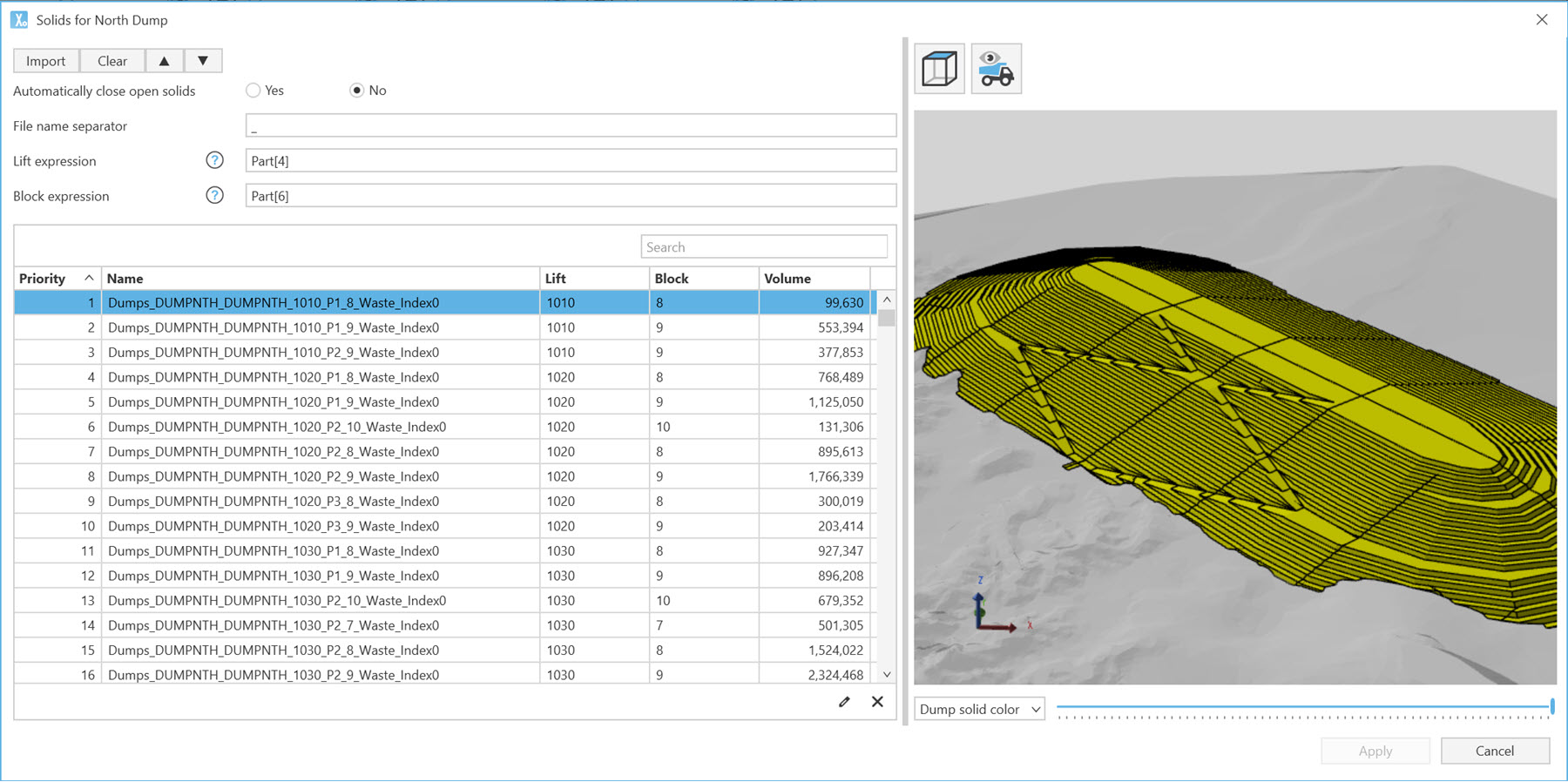
Opens the import panel to bring in dump solids, configure filling order, and preview haul routes. Each solid should represent a dump block. With dump solids, you can animate the filling sequence, filter solids, and set priorities for lifts and blocks. If haulage is enabled, individual solids can act as destinations for travel time calculations, using slice centroids for precision. |
Importing dump solids
When you click Add Solids, the import dialog opens with the following configuration options:
|
Item |
Description |
|---|---|
|
Import Folder |
Select a folder containing dump solid files. All valid files will be imported. |
|
File Name Separator |
Specify the character used to split the file name into parts (e.g., _). Necessary to return strings from the filenames for the naming expressions below. |
|
Using the Lift and Block Expression properties, you must return the name of a lift or block to associate with the given dump solid. An expression evaluates each imported solid, using the expression to find and return a valid name. As you are likely importing many solids, ensuring each solid has a consistent and complete filename is important. The filenames, as well as their uniform structure, are required to efficiently map each solid to a lift or block name. Let’s say that you import the following solids, using an underscore as the filename delimiter:
There are seven parts in each filename, and each one can be returned using the [PartX] function.
You can combine different parts to make a larger string using. For example, an expression could look like [Part6]_[Part7] to return the name 8_Waste. |
|
|
Lift Expression |
An expression to define the name of the lift associated with the given dump solid. |
|
Block Expression |
An expression to define the name of the block associated with the given dump solid. |
|
Priority Setting |
Set the dump filling order by selecting rows and using up/down arrows. Multiple rows can be selected. |
|
Haul Route Preview |
Toggle haul route visibility if a haulage model is imported. |
|
Animation Slider |
Animate the filling order of dump blocks from the bottom to the top lift. Useful for visualising how the dump will fill over time. |